
Set up your AI receptionist
Create a receptionist, give it your business details and a greeting, choose what it can do, point a number at it, and publish.
The AI receptionist answers your calls, talks with callers in a natural voice, answers questions from what you've taught it, and takes action: it transfers calls, takes messages, books appointments and more. You set it up once, then point a phone number at it.
The receptionist is an add-on. If AI receptionist isn't in your sidebar under Call handling, your plan doesn't include it yet. See Change your plan.
Create a receptionist
- Open AI receptionist in the sidebar, under Call handling.
- Press New from template. Pick an industry template and fill in your business facts, or choose Start from scratch for a blank one.
- Answer the Set it up questions. Your Business name, the Number it answers (or I'll pick one later), Where people reach a human (a person, a phone number, or decide later), and the Opening hours it follows.
- Create it. You land in the receptionist's builder, with a Setup progress list across the top.
The Setup progress list shows what's left: business name, voice chosen and previewed, greeting written, at least one thing it can do, knowledge attached, a number pointed at it, published, and a test call placed. Each row has a button that takes you to the right place. Knowledge is the only row you can skip.
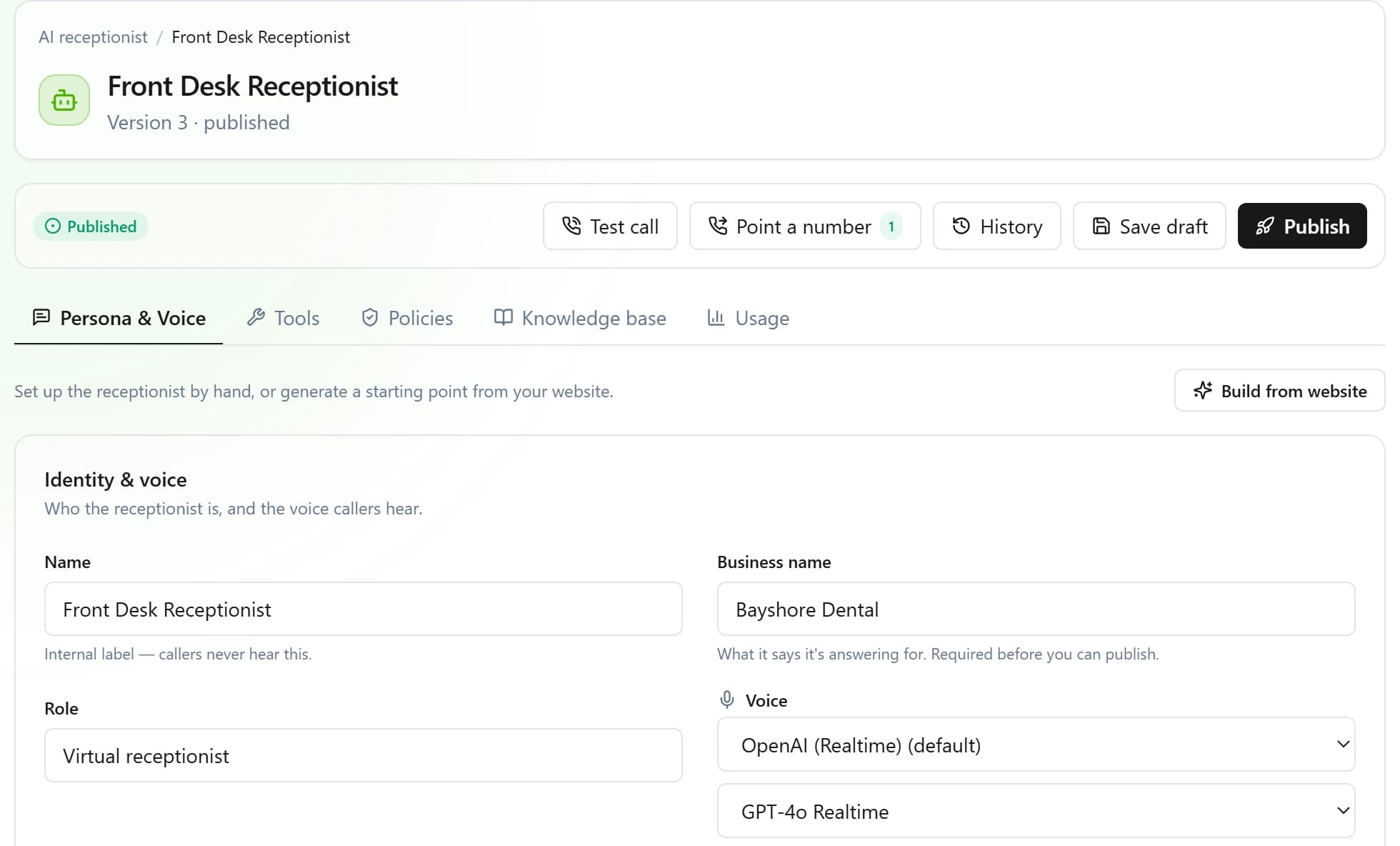
Persona & Voice
The first tab is who the receptionist is and how it sounds.
- Name. An internal label. Callers never hear it.
- Business name. What it tells callers it's answering for.
- Role. For example, "Virtual receptionist".
- Voice. Pick a voice and press play to hear it. Leave it on Default for the recommended one. Every Hey Quad receptionist runs on GPT-Live 1, our real-time voice model, so you choose the voice, not the model.
- Personality. Tap the traits you want, or add your own.
- Instructions. What it should know and do for your business. Start from a template (General receptionist, Appointment booking, Support & triage, or Sales & leads) and edit it.
- Greeting. The first thing callers hear. Press Hear the greeting to listen in the chosen voice.
- Schedules. Which business-hours schedules it follows. See Hours and escalation.
Build from website. Have a website? Enter its address and press Build from website. It writes a starting persona from your site in 15–30 seconds. Read it over before you publish.
Tools: what it can do
The Tools tab, under What this receptionist can do, lists the actions it can take. Turn on only what you need. Each one is described in plain words. They're grouped as:
- Caller handling: Transfer to extension, Transfer to phone number, Transfer to another assistant, Run a call flow, Escalate to a human, End the call.
- Information & data: Look up a contact, Look up who works here, Check business hours, Record consent.
- Caller record: Update a caller's details, Label a caller (for example as spam).
- Scheduling: Check availability, Book an appointment.
- Messaging: Take a message, Open a support ticket, Send an SMS.
- Urgent: Alert a teammate, Page the on-call person.
- Sales: Capture a lead.
- Follow-up: Schedule a callback.
- Returning customers: look up, reschedule or cancel their appointments; look up their open requests or add to one; send them an email; look up their business or service address.
Some tools need the Inbox or CRM in your plan. If your plan doesn't include them, they don't appear.
Some tools only run after the caller proves who they are. Those tools say Some actions require caller verification. You set that up on the Policies tab, under Caller verification. The receptionist can text the caller a one-time code (One-time code by text) or ask security questions checked against their saved contact record.
The Integrations part of the Tools tab lets the receptionist use a system you've connected on the Integrations page.
Policies
- When you transfer to a person. Turn on Show a briefing card so the person who answers sees who's calling and why, before they say hello.
- When the call is over. Hang up after goodbye ends the call 2 seconds after both sides say goodbye. If the caller keeps talking, the call stays up.
- Caller verification. See above.
Point a number at it
Press Point a number at the top of the builder, pick the Phone number, and save. Calls to that number now go straight to the receptionist. Whatever the number did before is replaced. You can change it back any time on the Phone numbers page, where the number shows → Receptionist: and its name.
Save, publish and change it later
Your edits are a draft until you publish. Callers always hear the last published version.
- Save draft keeps your changes without going live.
- Publish makes them live right away.
- Discard draft throws away unsaved changes.
- History lists every version you've published. Load one back to review it, or revert to it.
The status at the top tells you where things stand: Draft, not yet published, Published, or Published, with unpublished changes.
Before your first publish, place a test call. See Test and review calls.
Was this helpful?