
Test and review receptionist calls
Call your AI receptionist before callers do, then read what it heard and did on every real call, and see how it's doing over time.
Place a test call
A test call rings one of your own phones and puts your receptionist on the line, so you hear exactly what a caller would.
- Open the receptionist from AI receptionist in the sidebar.
- Press Test call at the top.
- Choose Where should we ring? My HeyQuad devices rings your softphone, app or desk phone as an internal call. Open the app first: it rings for a test call only while it's open. Or choose One of our numbers to call in on one of your numbers, the way a caller would. That call follows the number's own routing.
- Choose which version to hear. The draft you're editing (save a draft first) or The published version.
- Press Call me and pick up.
Testing the draft lets you try changes before callers hear them. Test calls are marked as tests in your call history and don't count toward your AI minutes or your bill.
What to try on a test call
- Ask your three most common questions. Did it answer from your knowledge base?
- Ask for a person by name, then ask for "someone in sales". Did it put you through the right way?
- Ask something it shouldn't know. It should say it doesn't have that answer, not make one up.
- Ask "are you open?" Is the answer right for today?
- Say goodbye. Does it end the call cleanly?
Review real calls
On the receptionist's Usage tab
Each receptionist has a Usage tab:
- Recent traffic: calls handled, AI minutes used, average call length and the top outcome.
- Outcomes: Handled start to finish (no person needed), Passed to a person, Escalated (to a queue or the on-call person) and Booked something.
- What it did mid-call: each tool it used, how often, and how often it failed.
- Recent calls: click any call to open its full history, including the transcript, the timeline, the recording and the charges.
- AI pool: how much of your AI minutes this receptionist has used this month.
In the Inbox
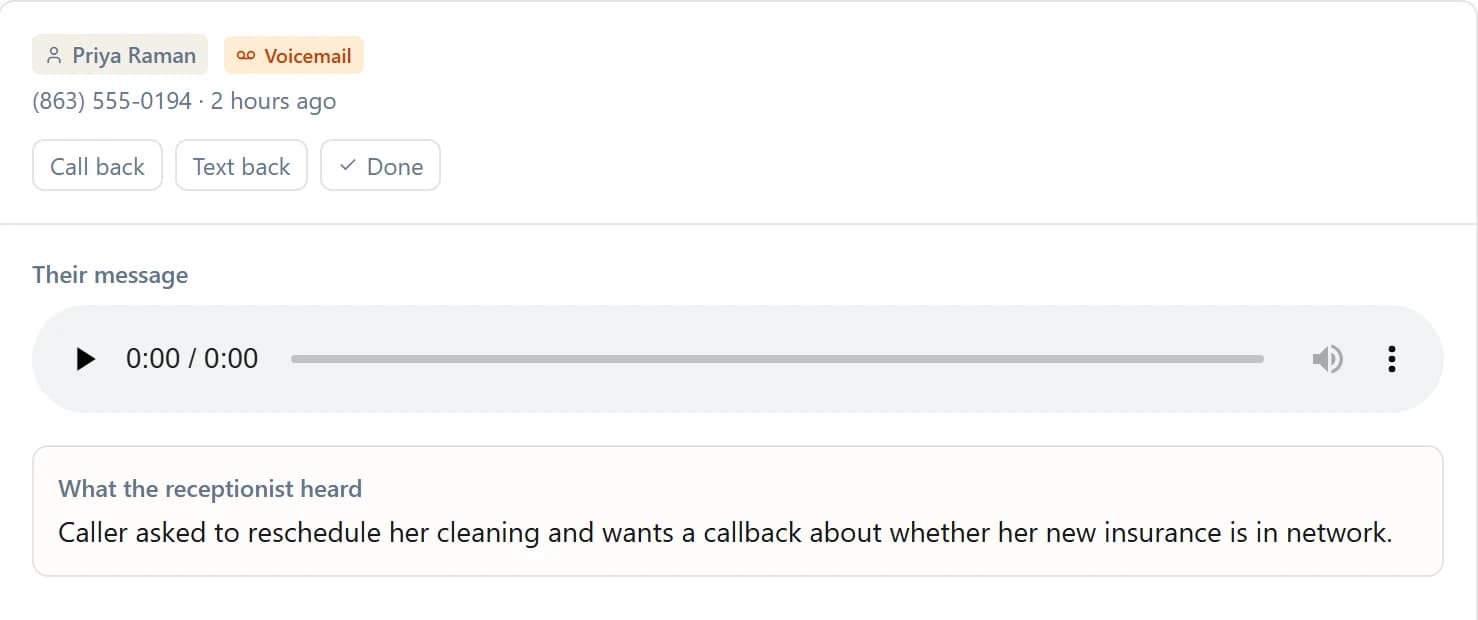
When the receptionist takes a message, the caller's message lands in the shared Inbox with the recording and a summary of what the receptionist heard. You can call back, text back or mark it done from there.
The AI receptionist report
For every receptionist at once, open Reports → AI receptionist. Pick a date range to see:
- Calls answered, Handled start to finish, Passed to a person and Appointments booked, plus leads, tickets and messages.
- AI minutes used from your pooled allowance, and the Average call.
- What happened on each call: which tools ran and which attempts didn't complete.
- Knowledge base & mood: how often answers came from your knowledge base, and How callers sounded.
The report is for owners and admins, or anyone given access to reports.
Turn what you see into fixes
| You notice | Do this |
|---|---|
| It didn't know an answer | Add it to the knowledge base. Check Questions you can't answer yet. |
| It transferred when it shouldn't have, or didn't when it should | Say when to transfer in its Instructions, then test again. |
| A transfer rang nobody | See Hours, transfers and escalation. |
| A tool keeps failing | Open the tool's settings on the Tools tab. A missing extension, calendar or queue is the usual cause. |
| It didn't answer at all | See The receptionist didn't answer. |
After any change, Publish, then place another test call.
Was this helpful?